Who is it for?
This guide is intended for technical contacts at WMDA member organisations who manage API integrations and credentials. In this guide, we refer to these contacts as Credential Managers - the designated technical users responsible for managing API credentials.
Quick summary
- What credential managers can do: View, create, and delete client secrets for your applications.
- What WMDA does & what members do: WMDA creates and manages the applications and provides each application with a permanent client ID and a client secret; members manage their own client secrets associated with these applications using the dedicated portal page.
- Why secret rotation matters: Client secrets expire periodically. Rotating them on time ensures uninterrupted API access and maintains security.
1. Manage API Credentials
You can manage API credentials using the Manage API Credentials page, where you can view, create, and delete client secrets.
API credentials consist of a client ID and a client secret. This portal allows you to manage the client secrets associated with each application. See 2. About API Credentials & 3. Applications on the Manage API Credentials Page below for more details.
1.1 Access to the Manage API Credentials Page
- Visit the Manage API Credentials page https://portal.wmda.info/manage-api-credentials.
- You must login to the WMDA Portal using MFA (MFA user guide).
- You must have the credential manager role assigned by the WMDA team.
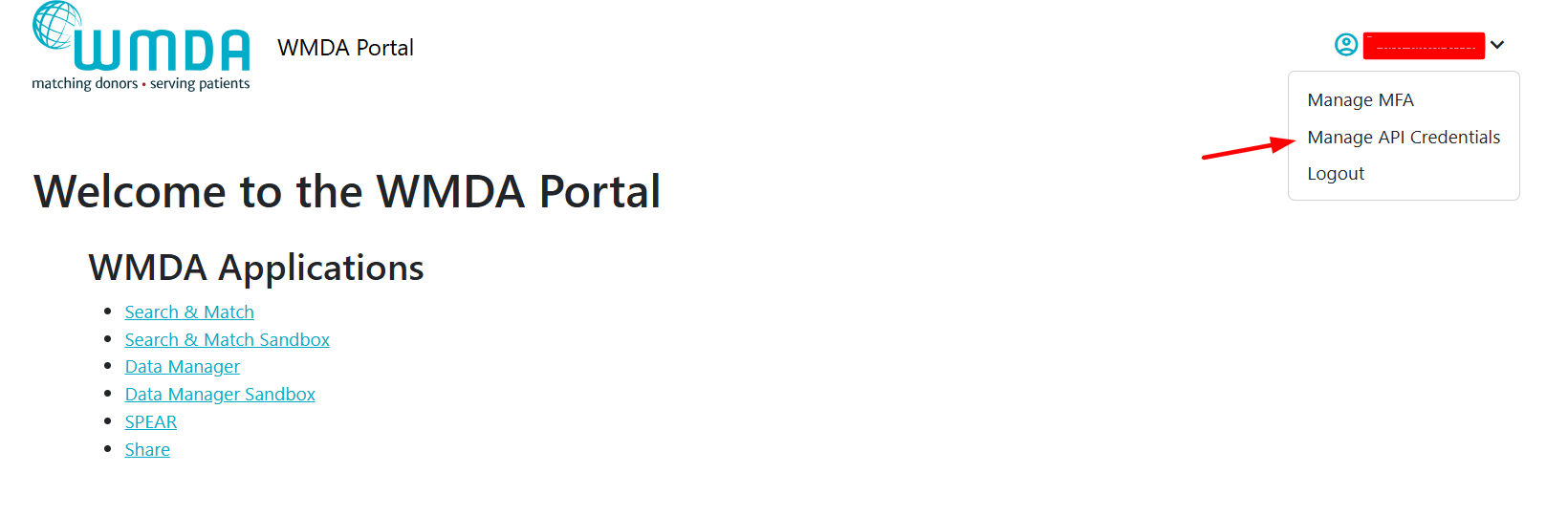
Who can be assigned the credential manager role?
Any user within your organisation who has access to the WMDA Portal can be assigned this role.
This user need to be able to log in to the WMDA Portal using MFA (see MFA user guide).
- The credential manager role is assigned per application. We recommend having at least 2 users per application to ensure this sensitive responsibility does not become a bottleneck and that a backup user is available.
- Practical guidance: Assign this role to someone who can responsibly manage API credentials and coordinate with your technical team. This could be someone who is part of the technical team or closely involved in API implementation.
Responsibilities:
Your organisation should designate one or more credential managers responsible for managing API credentials.
Only users with the credential manager role assigned by the WMDA team can access the Manage API Credentials page.
WMDA cannot assign this role without confirmation from your organisation.
- Before contacting WMDA support, please confirm internally who in your team should be assigned this role. If access is required, contact us at: support@wmda.info
As a credential manager, you can use the Manage API Credentials page to:
- View the applications and their client IDs provided by the WMDA team.
- Create new client secrets for these applications.
- See expiration date for each client secret.
- Delete client secrets that are no longer needed.
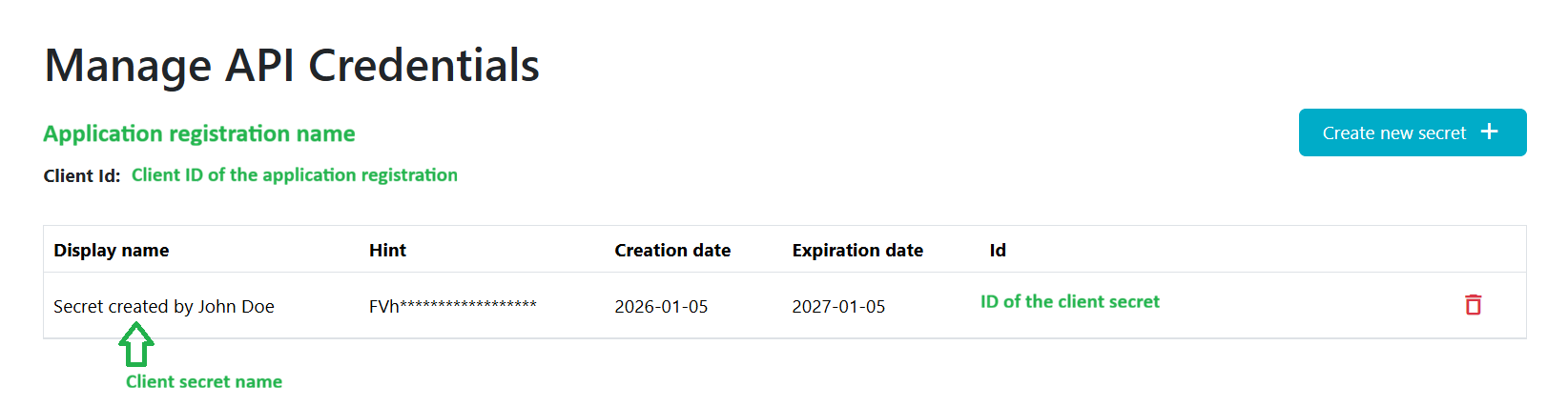
1.2 Create a Client Secret
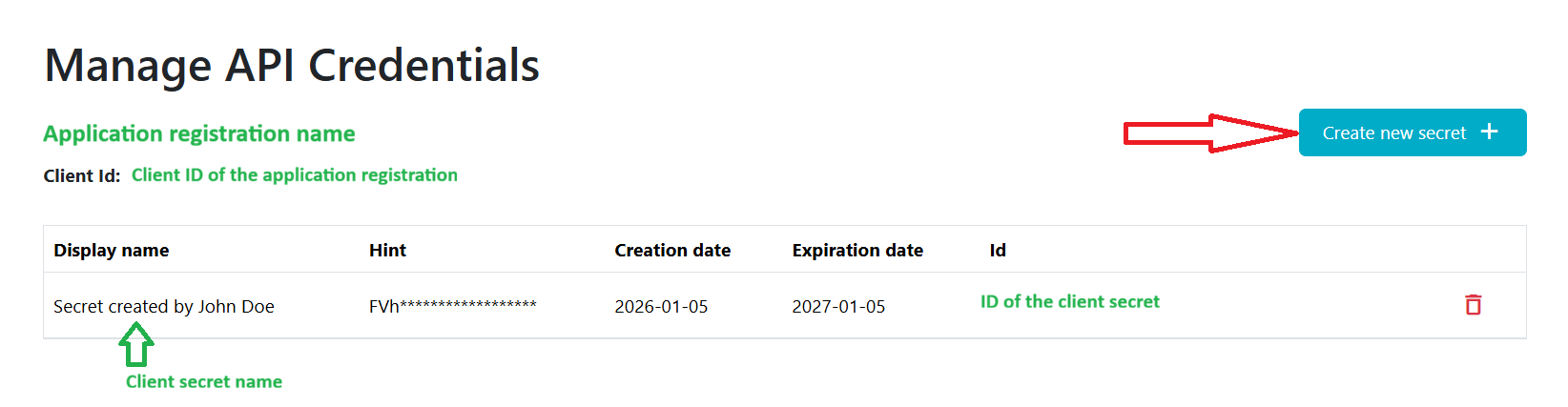
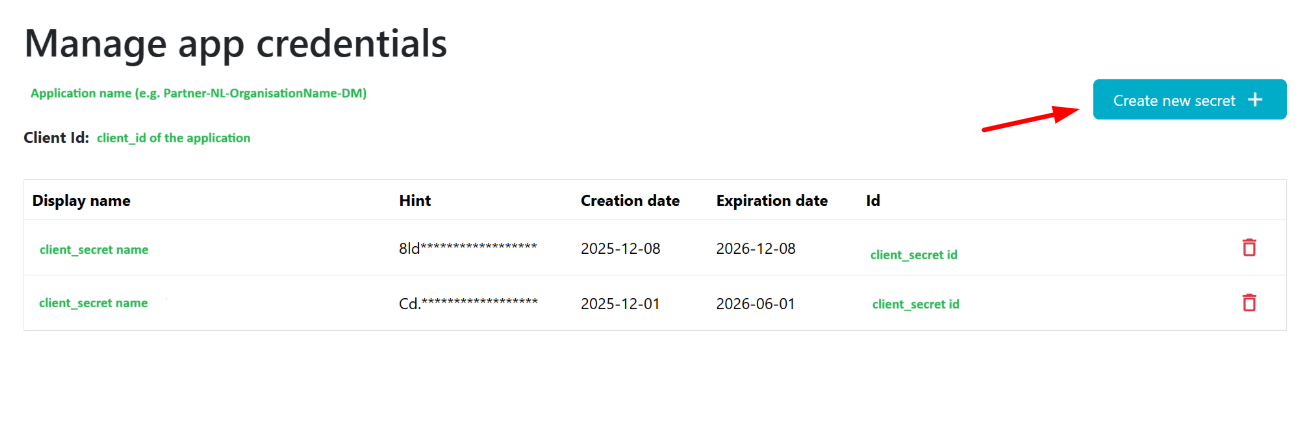
- Visit the Manage API Credentials page https://portal.wmda.info/manage-api-credentials and click on the "Create new secret" button and the pop-up will appear:
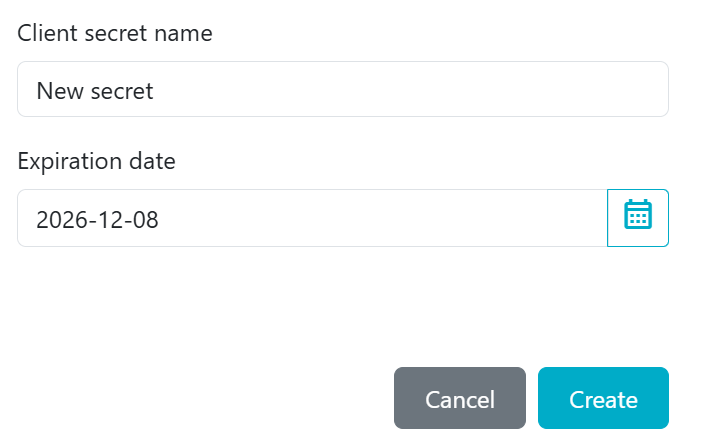
2. Provide client secret name and expiration date (one year maximum) for this secret:
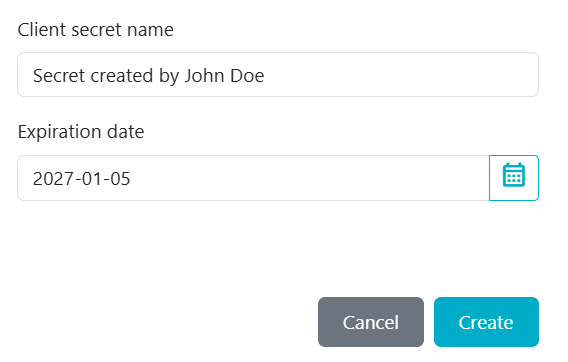
The maximum expiration date for a client secret is one year to comply with the WMDA security policies.
| Info |
|---|
We advise including your name in the "client secret name" field (e.g., "Secret by John Doe") so the WMDA team can contact you if troubleshooting or follow-up is needed. |
3. Click on "Create".
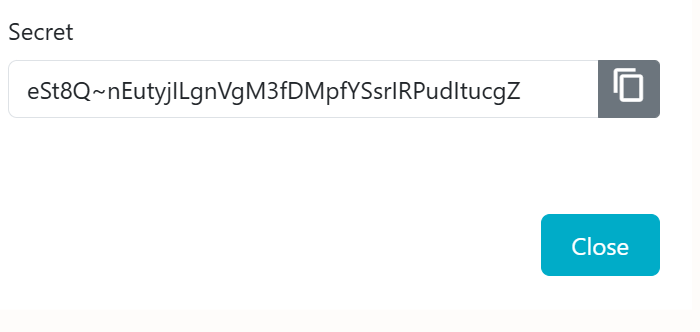
4. Copy the client secret that appears:
| Warning |
|---|
When you create a new secret, copy and store it securely. After you refresh or return to this page, the full secret will no longer be visible - only the first three characters (hint) will remain. If you don't copy the newly created secret, you lose it, and you'll need to generate a new secret.
|
Once a new client secret is in use, the old one should be removed to prevent unnecessary expiration reminders and confusion.
1.3 Delete a Client Secret
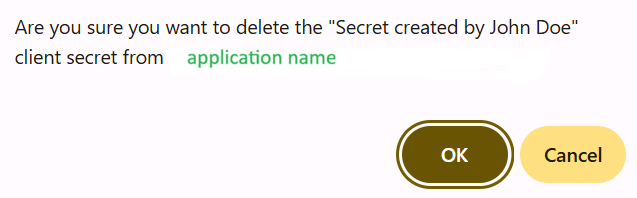
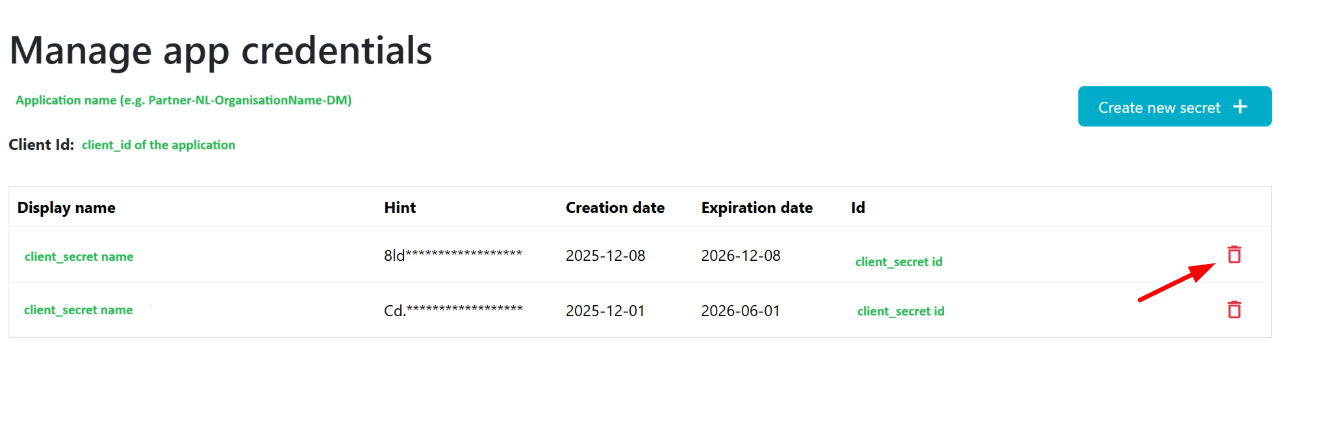
Click on the delete icon next to the secret you would like to delete and confirm your action:
1.4 Expiring Client Secrets
To inform credential managers about secrets that are about to expire, email notifications are sent by WMDA. See 4. Email Notifications About Expiring Client Secrets below for more details.
Client secret that is about to expire (in less than one month) is marked with an icon next to the expiration date:

1.5 Recommended Rotation Workflow
- Create new client secret.
- Update it in your system.
- Confirm connectivity.
- Delete old client secret.
This recommended workflow mirrors real-world operational practice and avoids outages.
Do Not
Do not create client secrets with a short expiration date unless required for specific testing purposes. We recommend using the maximum expiration of one year to minimise rotation work.
Do not share client secrets with anyone outside your organisation. Treat them as confidential credentials.
Do not use expired secrets - they will break API connections. Always create a new secret before the old one expires.
Do not delete secrets currently in use without first updating systems that rely on them. Deleting an active secret will immediately stop API access.
2. About API Credentials
| Info |
|---|
To authenticate with the |
 the page is not not public yet
1. Introduction
WMDA IT team creates applications for your organisation to facilitate the identification and procurement of stem cell products from around the world. To maintain secure access to these applications the WMDA provides the API Credentials (client_id and client_secret) needed to connect to WMDA APIs. Each application has a client_id (which is permanent) and requires client secret to authenticate.
| Info |
|---|
To authenticate with WMDA APIs, a bearer token must be requested from the WMDA. For details on how the client _id ID and client _ secret are used to retrieve bearer tokens and authenticate future requests to the WMDA API, see API authentication. |
WMDA team creates applications for members that implement WMDA APIs. To securely connect to these applications, the IT team provides API credentials, which consist of:
- Client ID - a permanent identifier for the application.
- Client secret - a confidential credential used to authenticate API requests, which must be rotated periodically.
API credentials are used exclusively for machine-to-machine authentication and are not intended for user login.
Client _idID
- Created by the WMDA and shared with your organisation.
- Identifies your application connection to the WMDA APIs.
- Permanent - it does not expire and cannot be changed.
Client _ secret
- A confidential credential linked to a specific client _idID.
- Acts like a temporary password for machine-to-machine authentication.
- Required when requesting a bearer token to connect to the WMDA APIs.
- Expires after a set period. A replacement must be created and used.
- Can be managed by your organisation's credential managers on the Manage API credentials page (see 4. Managing your client secrets below)Credentials page.
| Warning |
|---|
Client _id ID stays the same permanently. It does not expire and does not need to be replaced. Client _ secret expires after a set period. When the client _ secret expires, API connections will stop working until a new secret is created and updated in your systems. To avoid interruptions, always rotate the secret before it expires. See 5. Email Notifications About Expiring Client Secrets below |
...
3. Applications on the Manage API
...
Credentials Page
The Manage API credentials Credentials page lists the application registrations (referred to as applications in this guide) created by the WMDA IT team for your organisation. Each application represents access to one or more APIs.
Each application is associated with a client ID and client secrets, which can be managed by credential managers using the WMDA Portal.
These applications are created and managed by the WMDA team; members cannot create or modify them.
Examples of applications you may see on the Manage API credentials Credentials page:
- Partner-NL-OrganisationName-DM
Partner-NL-OrganisationName-SMC
PartnerAlternative-NL-OrganisationName-SMC (sandbox only)
Applications naming convention follows this pattern: Partner-(Country Code)-(Organisation Name)-(API). Where:
Country Code: 2-letter ISO code for your country (e.g., NL).Organisation Name: your organisation name.API: The WMDA APIs the application has permission to access, e.g.:DM (Data Manager).SMC (Search, Match & Connect).
Depending on the API permissions assigned to your application, it may have access to the following WMDA resources:
- Search and Match production;
- Search and Match sandbox;
- Match-Connect production;
- Match-Connect sandbox;
- Data Manager production;
- Data Manager sandbox;
| Info |
|---|
PartnerAlternative is a "dummy" organisation application for implementers to test their Match-Connect API integration internally. It works only in the Match-Connect sandbox and is provided upon request. |
Each application has its own client_id and client secret. Visibility depends on your user role (see 3. Access to the Portal below) and the API permissions assigned to your application.
3. Access to the Manage API credentials page
You can manage client secrets using the Manage API credentials page, where you can view, create, and delete client secrets.
To access the page:
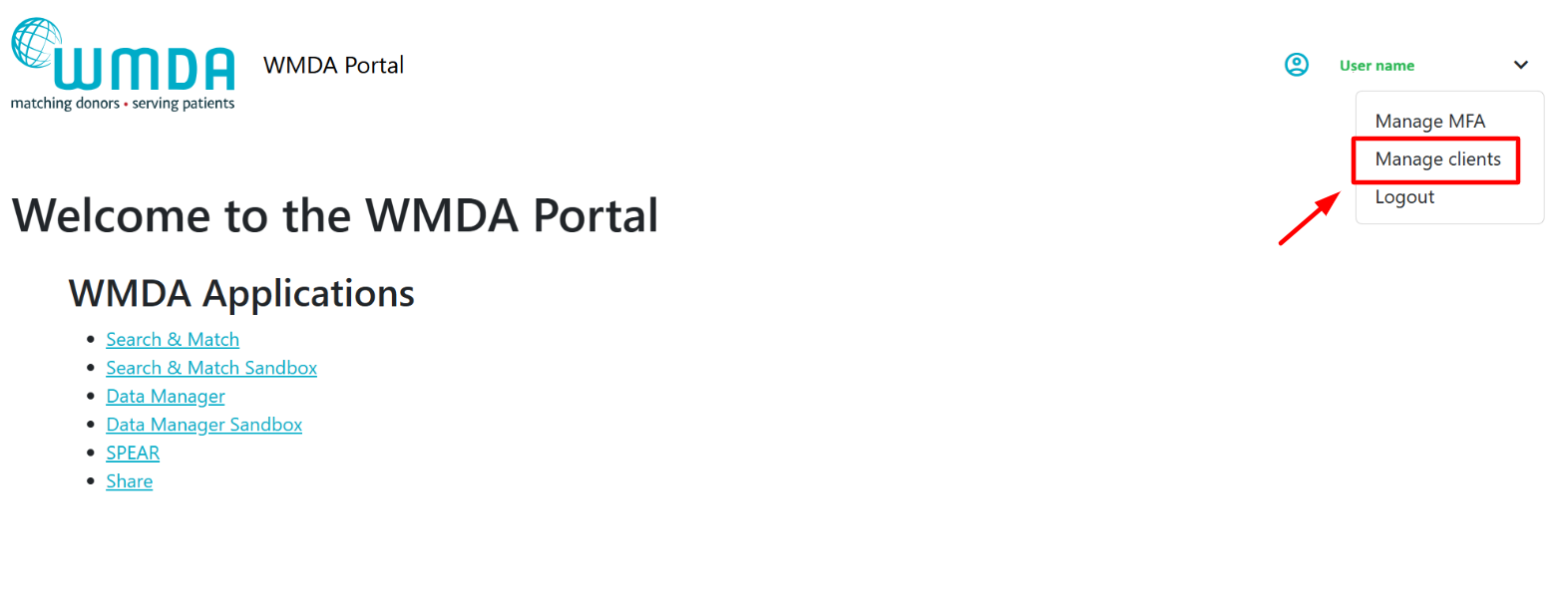
- Visit the page https://portal.wmda.info/manage-clients.
- You must login to the portal using MFA (MFA user guide).
- You must have the appropriate user role (
credential manager) assigned by the WMDA team.
| Info |
|---|
Your organisation should designate one or more technical contacts ( Only users with the Before contacting WMDA support, confirm internally who is responsible within your team. If access is required, contact WMDA: support@wmda.info |
4. Managing your client secrets
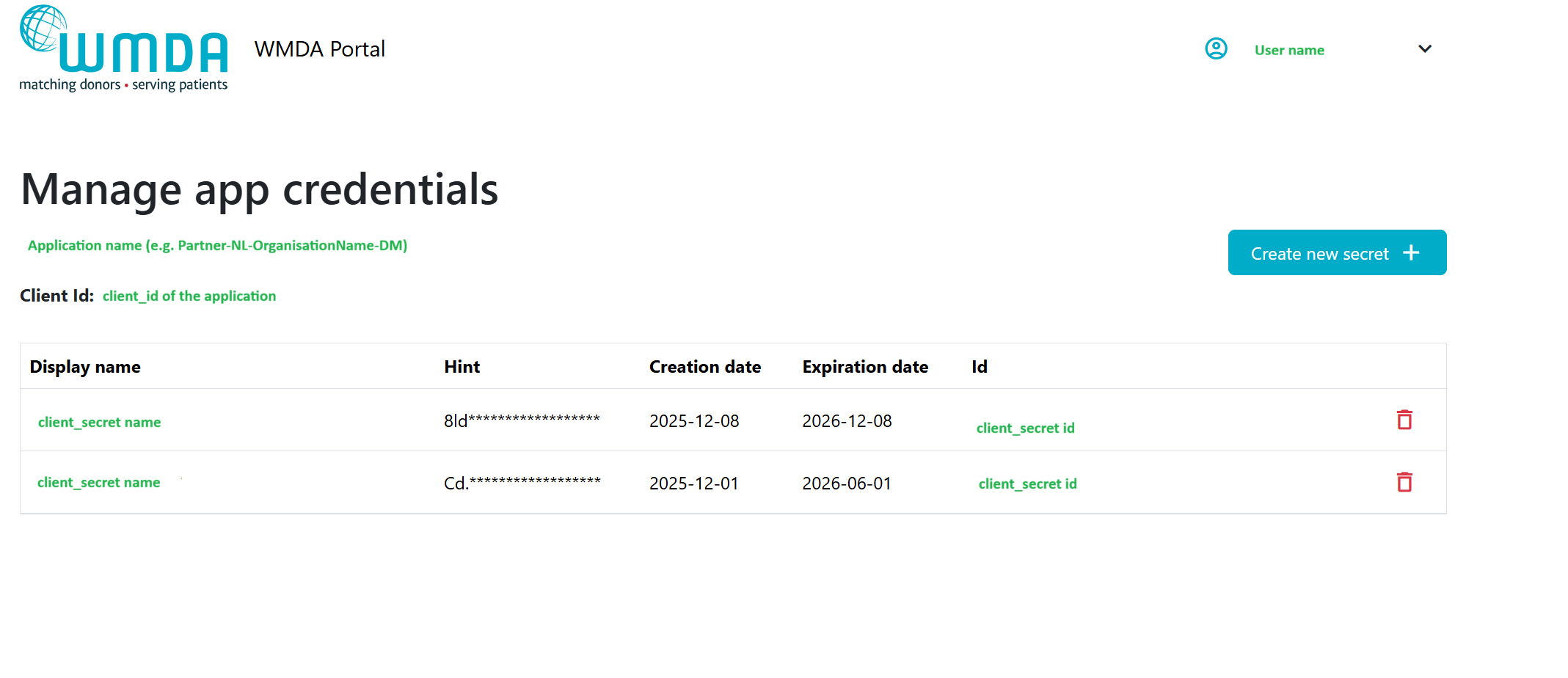
As credential manager you can use the Manage API credentials page to:
- View the applications and their client_ids provided by the WMDA.
- Create new client secrets for these applications.
- See expiration date for each client secret.
- Delete client secrets.
To create a new secret:
1. Click on the "Create new secret" button and the pop-up will appear:
2. Provide client secret name and expiration date (1 year maximum) for this secret:
3. Click on "Create".
4. Client secret will appear:
| Warning |
|---|
When you create a new secret, copy and store it securely. After you refresh or return to this page, the full secret will no longer be visible - only the first three characters (hint) will remain. If you don't copy the newly created secret, you lose it, and you'll need to generate a new secret. |
Once a new client secret is in use, the old one should be removed to prevent unnecessary expiration reminders and confusion.
To delete a secret:
1. Click on the delete icon next to the secret you would like to delete and confirm your action:
5. Email Notifications About Expiring Client Secrets
4. Email Notifications About Expiring Client Secrets (Coming Soon)
This feature is not yet available, and no emails are currently sent regarding expiring client secrets. More details will be provided once the feature is live.
The credential managers The designated contact(s) (credential manager) for your organisation will automatically receive email notifications from WMDA when a client secret is approaching expiration.
...
- 6 weeks before client secret expiration.
- 3 weeks before client secret expiration.
- 1 week before client secret expiration - daily reminders until the secret is replaced.
...
- .