 the page is not not public yet
1. Introduction
WMDA IT team creates applications for your organisation to facilitate the identification and procurement of stem cell products from around the world. To maintain secure access to these applications the WMDA provides the API Credentials (client_id and client_secret) needed to connect to WMDA APIs. Each application has a client_id (which is permanent) and requires client secret to authenticate.
To authenticate with WMDA APIs, a bearer token must be requested from the WMDA. For details on how client_id and client_secret are used to retrieve bearer tokens and authenticate future requests to the WMDA API, see API authentication.
Client_id
- Created by the WMDA and shared with your organisation.
- Identifies your application connection to the WMDA APIs.
- Permanent - it does not expire and cannot be changed.
Client_secret
- A confidential credential linked to a specific client_id.
- Acts like a temporary password for machine-to-machine authentication.
- Required when requesting a bearer token to connect to the WMDA APIs.
- Expires after a set period. A replacement must be created and used.
- Can be managed by your organisation in the Self Service API Credentials Portal (see 4. Managing your client secrets below).
Client_id stays the same permanently. It does not expire and does not need to be replaced.
Client_secrets expire after a set period.
When the client_secret expires, API connections will stop working until a new secret is created and updated in your systems.
To avoid interruptions, always rotate the secret before it expires. See 5. Email Notifications About Expiring Client Secrets below
2. Applications in the Self Service API Credentials Portal:
The Self Service API Credentials Portal lists the applications created by the WMDA IT team for your organisation. Each application represents access to one or more APIs.
Examples of applications you may see in the Self Service API Credentials Portal:
- Partner-NL-OrganisationName-DM
Partner-NL-OrganisationName-SMC
PartnerAlternative-NL-OrganisationName-SMC (sandbox only)
Applications naming convention follows this pattern: Partner-(Country Code)-(Organisation Name)-(API). Where:
- Country Code: 2-letter ISO code for your country (e.g., NL).
- Organisation Name: your organisation name.
- API: The WMDA APIs the application has permission to access, e.g.:
- DM (Data Manager).
- SMC (Search, Match & Connect).
Depending on the API permissions assigned to your application, it may have access to the following WMDA resources:
- Search and Match production;
- Search and Match sandbox;
- Match-Connect production;
- Match-Connect sandbox;
- Data Manager production;
- Data Manager sandbox;
PartnerAlternative is a "dummy" organisation for implementers to test their Match-Connect API integration internally. It works only in the Match-Connect sandbox and is provided upon request.
Each application has its own client_id and client secrets. Visibility depends on your user role (see 3. Access to the Portal below) and the API permissions assigned to your application.
3. Access to the Self Service API Credentials Portal
You can manage client secrets using the Self Service API Credentials Portal, where you can view, create, and delete client secrets.
To access the portal:
- You must have the appropriate user role (
credential manager) provided by the WMDA team. - Login to the portal using MFA (MFA user guide).
- Visit the page https://portal.wmda.info/manage-clients.
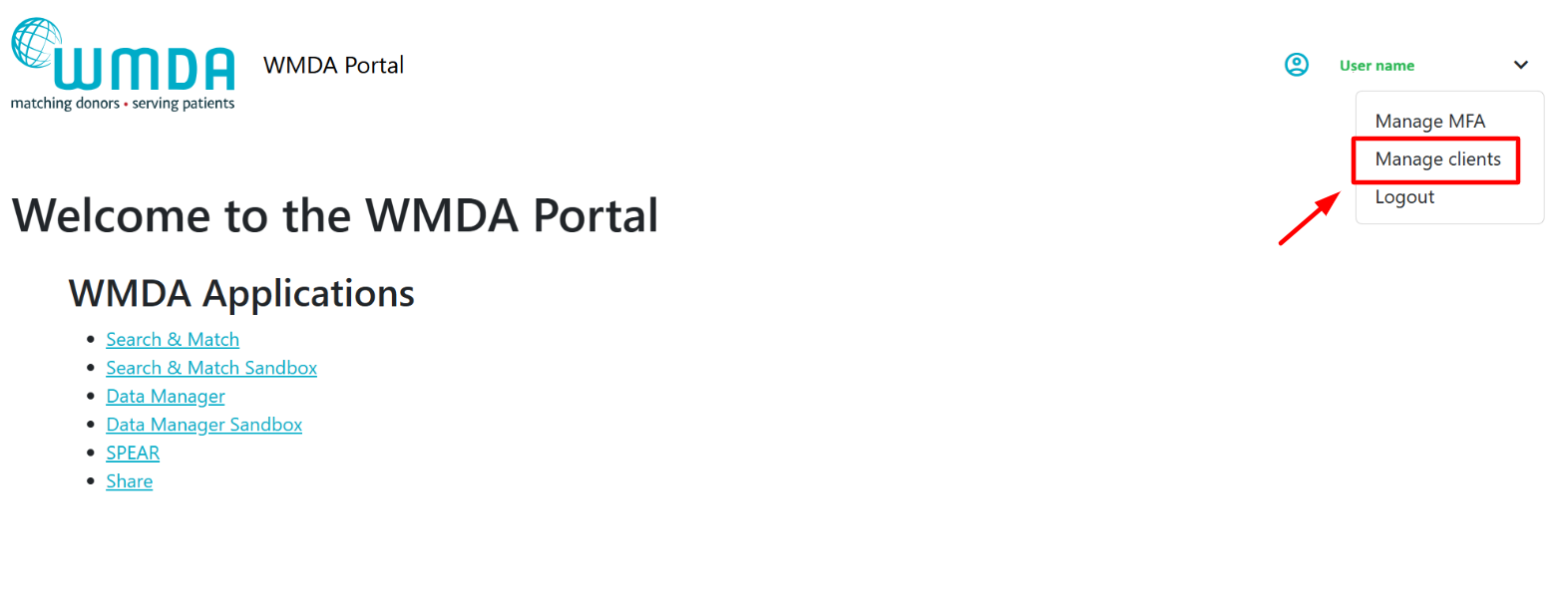
Your organisation should designate one or more technical contacts (credential manager) who are responsible for managing client secrets.
Only designated users can be granted access.
Before contacting WMDA support, confirm internally who is responsible within your team.
If access is required, contact WMDA: support@wmda.info
4. Managing your client secrets
As credential manager you can use the Self Service API Credentials Portal to:
- View the applications and their client_ids provided by the WMDA.
- Create new client secrets for these applications.
- See expiration date for each client secret.
- Delete client secrets.
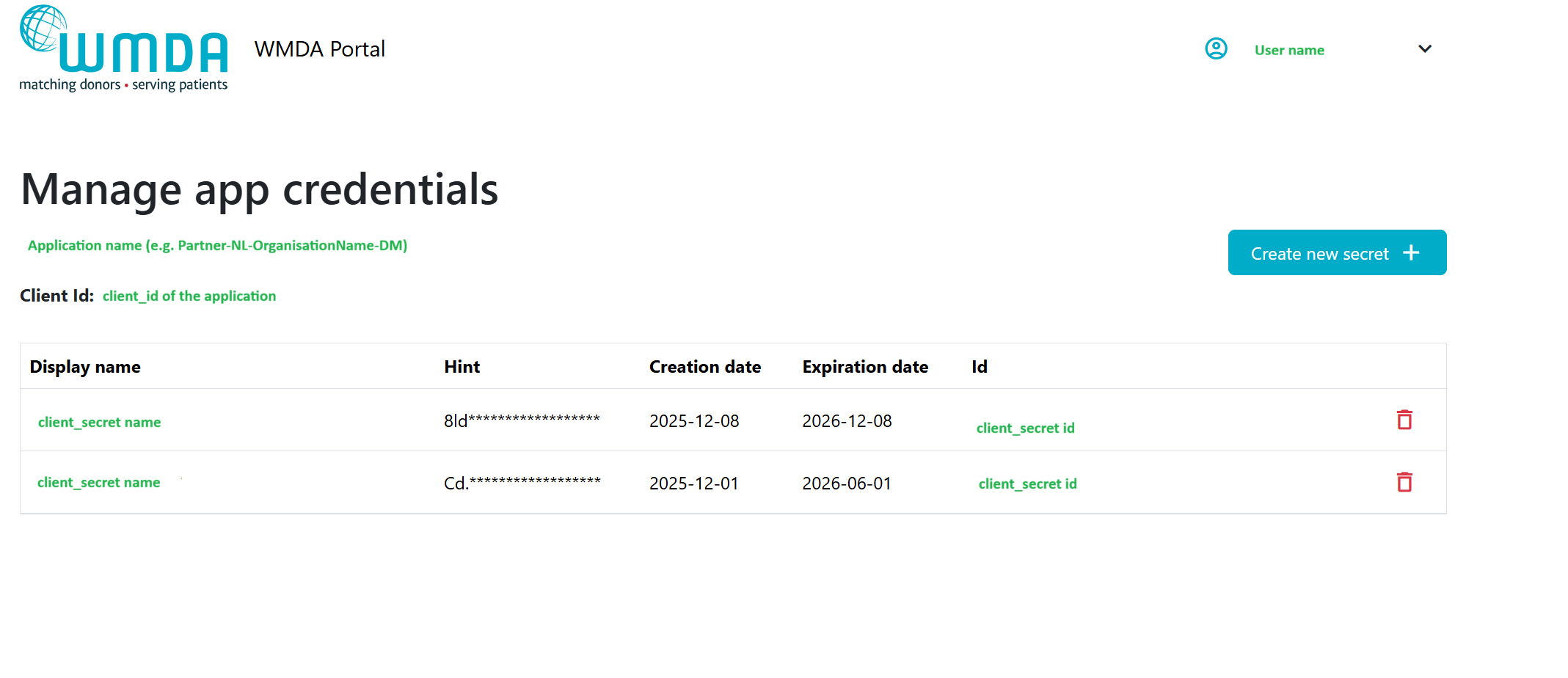
To create a new secret:
1. Click on the "Create new secret" button and the pop-up will appear:
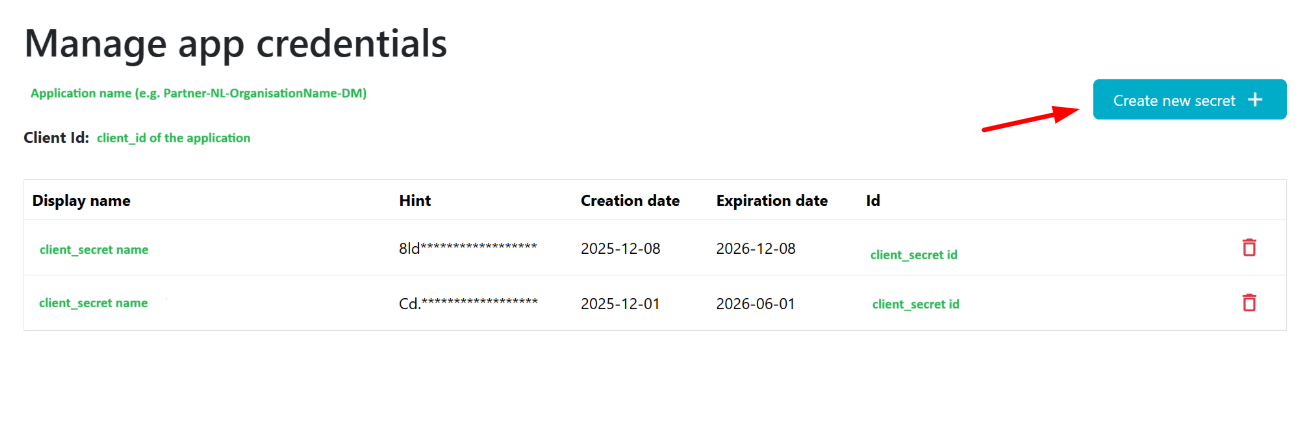
2. Provide client secret name and expiration date (1 year maximum) for this secret:
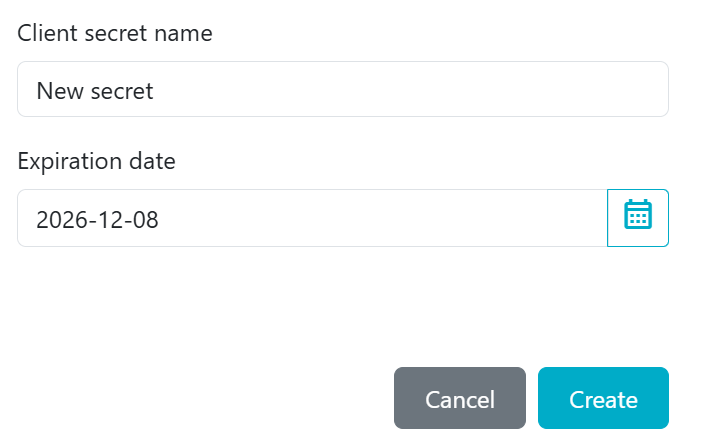
3. Click on "Create".
4. Client secret will appear:
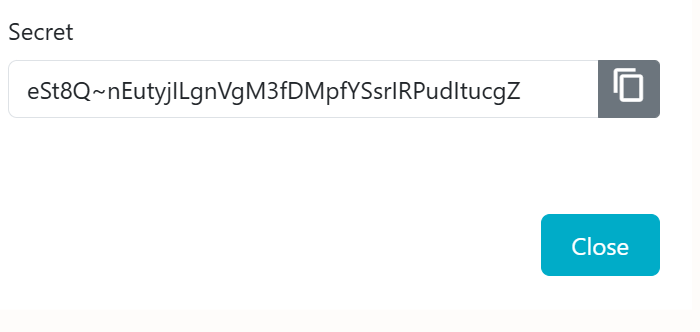
When you create a new secret, copy and store it securely. After you refresh or return to this page, the full secret will no longer be visible - only the first three characters (hint) will remain. If you don't copy the newly created secret, you lose it, and you'll need to generate a new secret.
Once a new client secret is in use, the old one should be removed to prevent unnecessary expiration reminders and confusion.
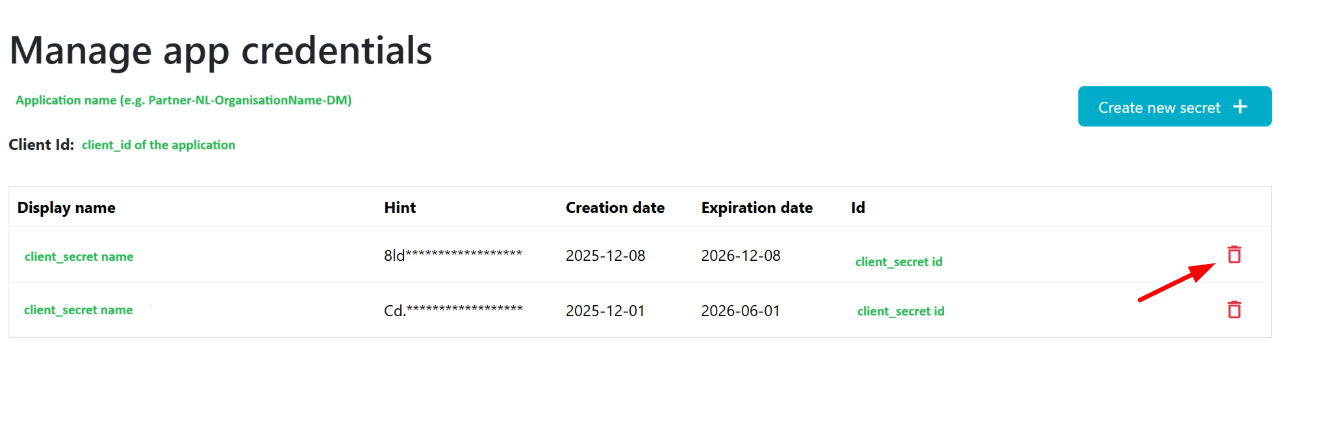
To delete a secret:
1. Click on the delete icon next to the secret you would like to delete and confirm your action:
5. Email Notifications About Expiring Client Secrets
The designated contact(s) (credential manager) for your organisation will automatically receive email notifications from WMDA when a client secret is approaching expiration.
Notifications are sent at the following intervals:
- 6 weeks before client secret expiration.
- 3 weeks before client secret expiration.
- 1 week before client secret expiration - daily reminders until the secret is replaced.
These reminders are sent only to users who have been granted access to the Self Service API Credentials Portal.